Support requests flooding your Teams channels? Buried messages and lost follow-ups frustrate both employees and IT staff. A proper ticketing system transforms Microsoft Teams from a chat platform into a structured helpdesk environment where every request gets tracked, assigned, and resolved.
What Is a Microsoft Teams Ticketing System
A microsoft ticketing system built for Teams converts user requests submitted through chat, channels, or forms into trackable tickets with unique IDs, status tracking, and assignment workflows. Unlike standalone helpdesk platforms that require switching between applications, ticketing in microsoft teams keeps support interactions where employees already work.
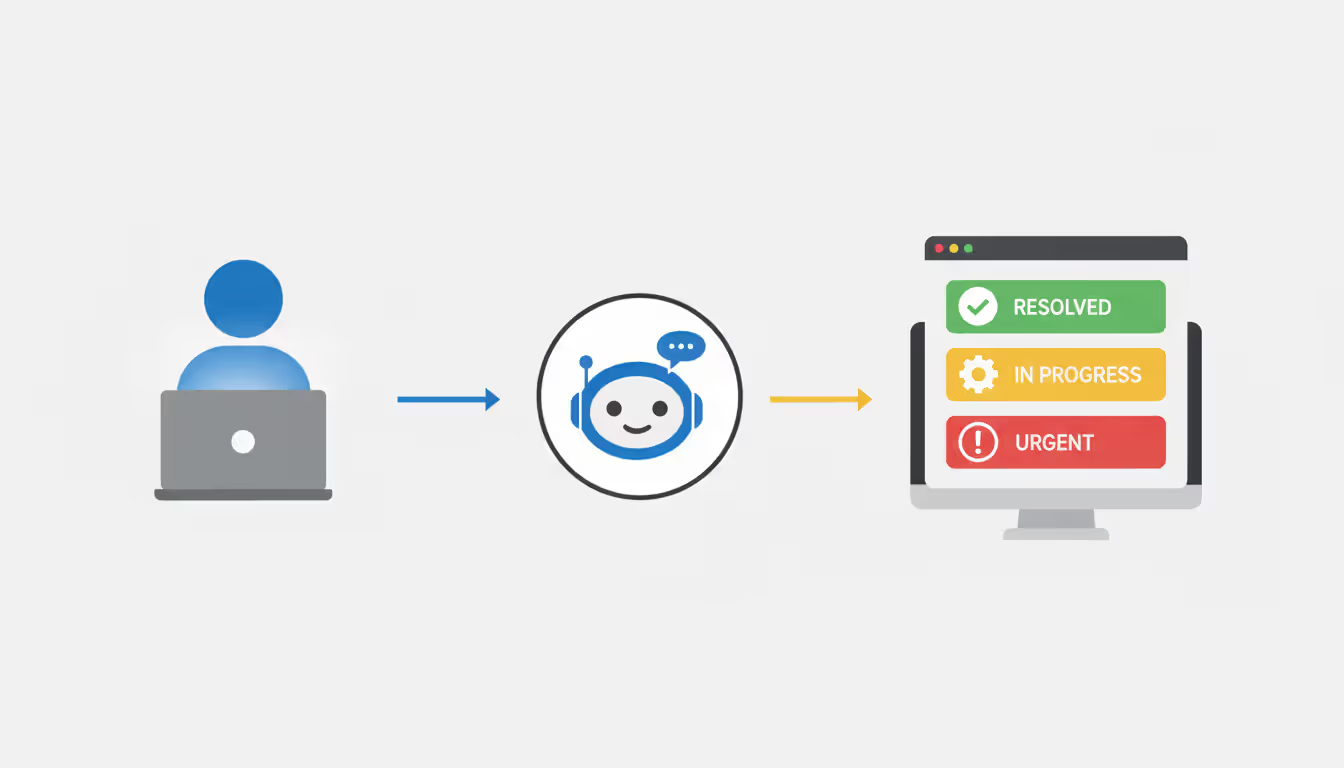
The core functionality mirrors traditional helpdesk software: users submit requests, automated rules route tickets to appropriate agents, team members update status and add notes, and requesters receive notifications about progress. The difference lies in delivery—everything happens inside the Teams interface through tabs, bots, or adaptive cards.
Traditional helpdesk tools operate as separate web portals. Employees must remember another login, navigate unfamiliar interfaces, and check multiple places for updates. Teams-based ticketing eliminates this friction by embedding support directly into daily workflows. A facilities request becomes a quick bot command during a meeting chat. An IT password reset starts with typing a message in a dedicated channel.
This approach works particularly well for internal support scenarios: IT helpdesk, HR inquiries, facilities management, procurement requests, or any department serving other employees. External customer support typically requires more robust features found in dedicated platforms, though some organizations successfully handle light external ticketing through Teams.
How Microsoft Teams Ticketing Works
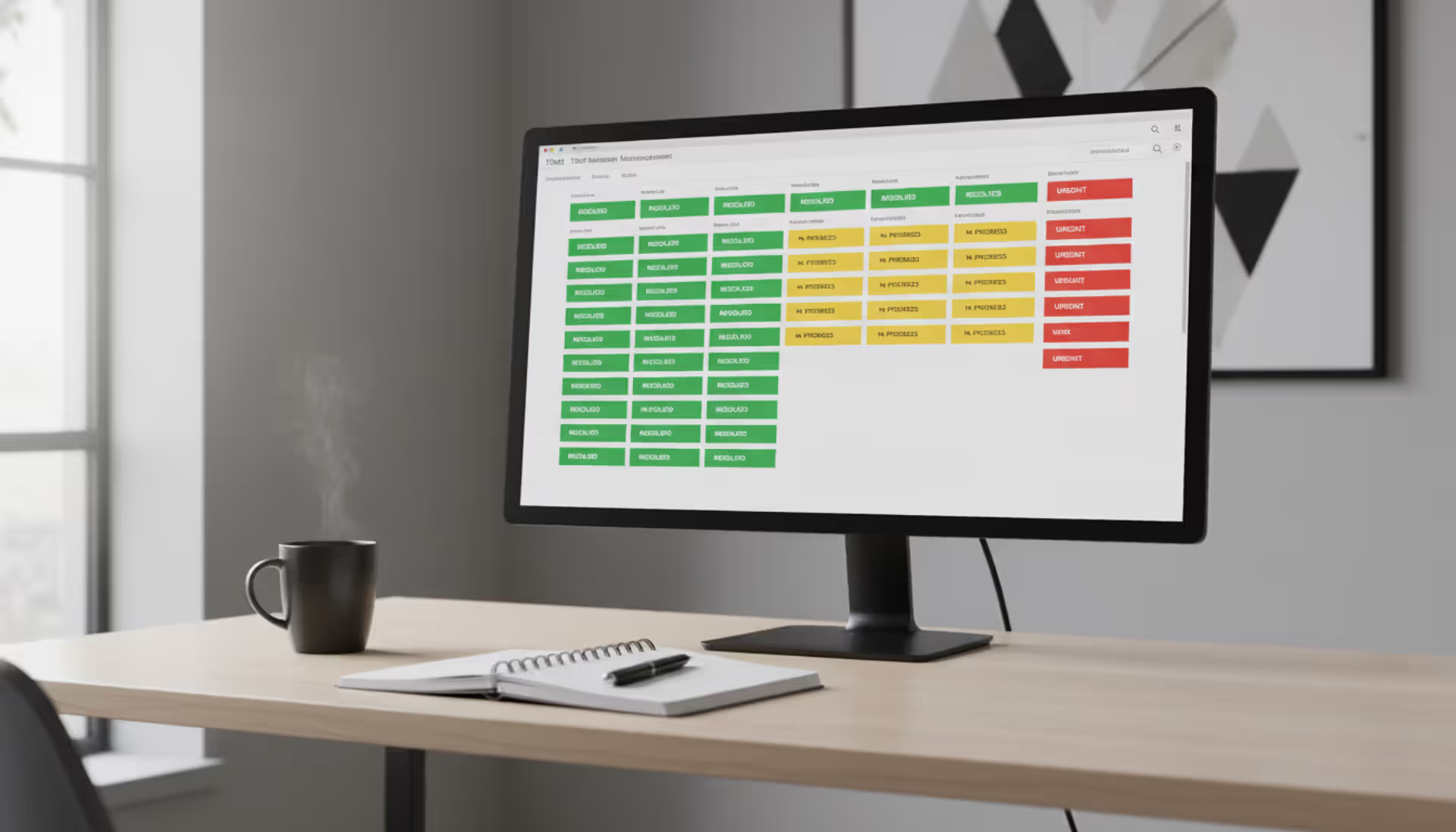
Most teams helpdesk integration solutions use one of three technical approaches. Bot-based systems let users create tickets by messaging a bot directly or mentioning it in channels. The bot responds with confirmation, ticket numbers, and status updates through conversational interfaces. Tab-based solutions add custom tabs to Teams channels or chat windows, displaying ticket queues, submission forms, and dashboards without leaving Teams. Adaptive cards present interactive ticket forms and status updates directly in chat feeds, allowing users to submit information or approve requests with button clicks.
The typical ticket creation workflow starts when an employee needs help. They might type a message to a support bot ("Reset my password for the finance system"), fill out a form in a dedicated support tab, or react to a message in a channel to convert it into a tracked ticket. The system captures the request details, assigns a unique ticket ID, and applies routing rules based on keywords, department, urgency, or other criteria.
Behind the scenes, the ticketing solution stores ticket data either in its own database, Microsoft Dataverse, SharePoint lists, or other Microsoft 365 services. Agents receive notifications through Teams activity feeds, bot messages, or channel posts. They claim tickets, update status, request additional information, and mark issues resolved—all within Teams. The requester sees updates in their chat with the bot or through @mentions in channels.
Author: Ethan Marlowe;
Source: musiconmainstreet.com
Native vs Third-Party Ticketing Solutions
Microsoft doesn't offer a built-in ticketing system in Teams. Power Apps and Power Automate allow technically skilled teams to build custom solutions using forms, approval workflows, and SharePoint lists for ticket storage. These homegrown systems work for simple scenarios with light ticket volumes, but they require ongoing maintenance, lack sophisticated features like SLA tracking or advanced reporting, and often break when Microsoft updates underlying services.
Third-party applications bring production-ready functionality with professional support, regular updates, and features refined through thousands of customer deployments. Most offer free trials, tiered pricing based on agent count, and pre-built templates for common support scenarios. The trade-off: subscription costs and dependency on vendor roadmaps.
For organizations with fewer than 50 monthly tickets and internal technical resources, a custom Power Apps solution might suffice. Beyond that threshold, third-party tools typically deliver better ROI through time savings and reduced frustration.
Integration with Microsoft 365 Services
Modern teams service desk solutions connect with the broader Microsoft 365 ecosystem. They pull user information from Azure Active Directory to auto-populate requester details and verify permissions. Tickets can attach files from OneDrive or SharePoint, embed links to relevant documents, or create associated tasks in Planner.
Calendar integration lets agents block time for ticket work or schedule follow-ups. Some solutions sync with Outlook to create tickets from emails, bridging communication channels. Power BI connectors enable advanced analytics dashboards combining ticket metrics with other business data.
The deepest integrations use Microsoft Graph API to access user profiles, check license assignments, query group memberships, or trigger actions across Microsoft 365 services. This connectivity transforms ticketing from isolated request tracking into an orchestration layer for workplace support.
Top Features to Look for in a Teams Ticketing Solution
Automation separates basic ticket trackers from genuine productivity tools. Look for automatic ticket routing based on keywords, department, or request type. Canned responses save agents from typing the same answers repeatedly. Escalation rules move stale tickets to supervisors after defined timeframes. Auto-close functionality resolves tickets when requesters confirm fixes or don't respond within set periods.
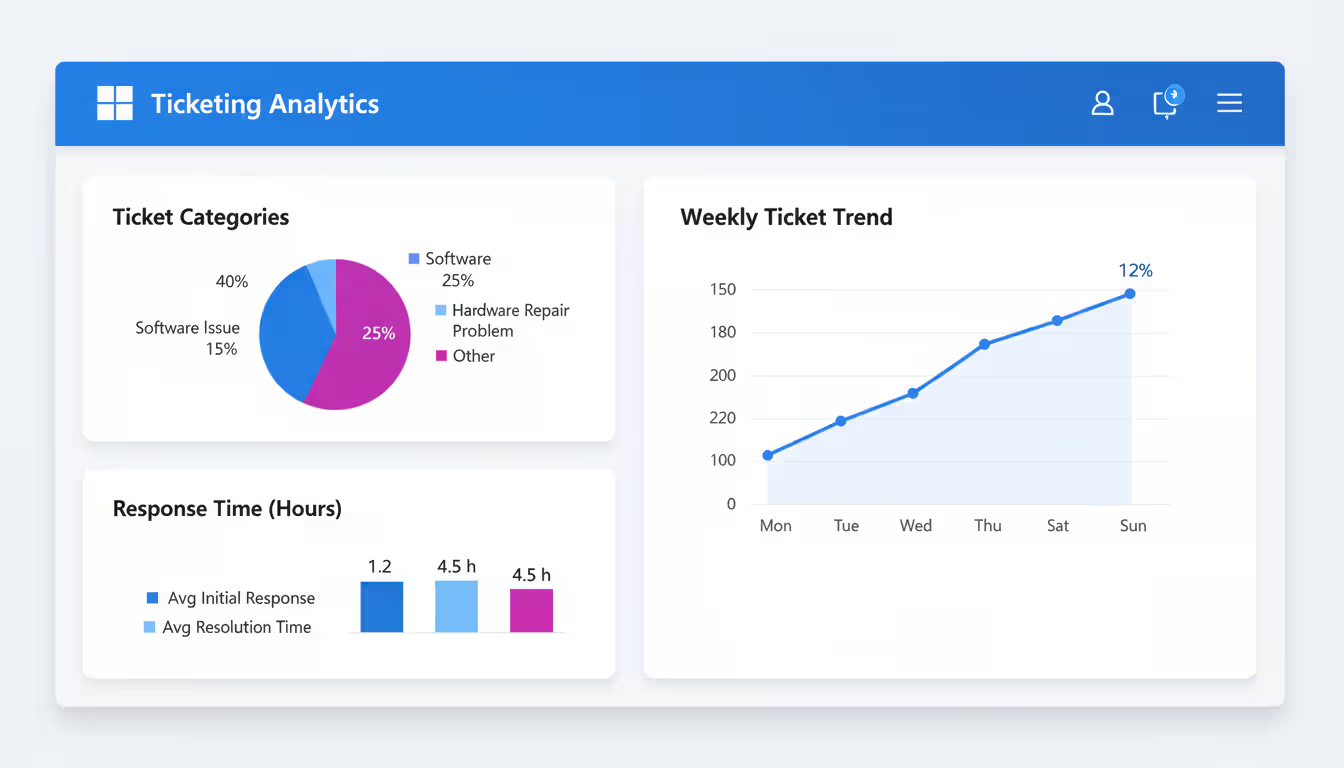
Reporting and analytics should go beyond simple ticket counts. Effective solutions track mean time to resolution, first response times, tickets by category, agent workload distribution, and SLA compliance rates. Exportable reports and customizable dashboards help identify bottlenecks, justify staffing decisions, and demonstrate support team value to leadership.
SLA management features let you define response and resolution targets for different ticket priorities or categories. The system should automatically flag at-risk tickets, send escalation warnings, and calculate SLA compliance percentages. Without this, teams resort to manual tracking in spreadsheets—defeating the purpose of ticketing software.
Author: Ethan Marlowe;
Source: musiconmainstreet.com
Multi-channel support matters when users submit requests through various methods. The ms teams help desk should accept tickets from bot conversations, form submissions, email forwarding, channel messages, and ideally external portals. All channels should create tickets in the same queue with consistent formatting.
Customization options determine whether the system adapts to your workflows or forces you to adapt to its limitations. Configurable fields, custom ticket statuses, department-specific forms, and adjustable notification rules let you match the tool to your organization's unique support processes.
Popular Ticketing Apps for Microsoft Teams
The teams ticketing solution market includes dozens of options ranging from simple ticket trackers to enterprise service management platforms. Here's how leading solutions compare:
Solution
Pricing
Key Strengths
Best For
Mobile Support
TeamSupport for Teams
$49/agent/month
Deep Teams integration, knowledge base, customer portal
Full ITSM suite, compliance features, white-label options
Large enterprises, regulated industries
Enterprise mobile apps
TeamSupport excels at teams helpdesk integration with native adaptive cards, bot interactions, and tab-based agent interfaces that feel like natural Teams extensions. The built-in knowledge base reduces repeat tickets by surfacing solutions during request submission.
Halo Service Desk brings enterprise-grade ITSM capabilities including asset tracking, contract management, and project modules alongside ticketing. Organizations managing complex IT environments appreciate the unified platform approach.
ProProfs Help Desk targets smaller teams needing straightforward ticketing without enterprise complexity. The shared inbox model works well for departments handling mixed email and Teams requests.
Freshservice leverages AI to suggest solutions, categorize tickets automatically, and predict SLA breaches before they occur. The service catalog functionality helps standardize common requests like software access or equipment orders.
Jira Service Management appeals to technical teams already using Jira for development. The workflow engine handles complex approval chains and cross-team dependencies that simpler tools struggle with.
Setting Up Ticketing in Microsoft Teams
Implementation starts with defining your support model. Map out ticket categories (hardware, software, access, facilities), priority levels, and routing rules. Identify who will serve as agents, what permissions they need, and how tickets should escalate. Document expected response times for each priority level.
Most teams it support solutions install from the Teams app store or Microsoft AppSource. Search for your chosen solution, click "Add," and grant the requested permissions. The app typically appears in your Teams sidebar and can be pinned for easy access.
Configuration involves creating ticket forms with relevant fields for your organization. A basic IT helpdesk might include fields for issue type, affected system, urgency, and description. HR ticketing might track request category, employee ID, and confidentiality level. Avoid adding too many required fields—each additional field reduces submission completion rates by roughly 5-10%.
Set up routing rules to direct tickets to appropriate teams or individuals. Simple keyword matching works initially: tickets mentioning "password" route to IT tier-1, "payroll" goes to HR, "broken chair" reaches facilities. Refine these rules based on actual ticket patterns over the first month.
Create a dedicated support channel where users can submit tickets or ask questions. Pin a message explaining how to create tickets, what information to include, and expected response times. Some organizations use separate channels per department; others centralize all requests then use automation for routing.
User onboarding determines adoption rates. Send an announcement explaining the new system with specific examples: "Need a password reset? Message @SupportBot instead of emailing IT." Create a short video showing ticket submission from a user perspective. Offer drop-in training sessions during the first two weeks.
Author: Ethan Marlowe;
Source: musiconmainstreet.com
A common mistake: launching without testing agent workflows. Have your support team create, assign, update, and resolve test tickets before going live. They'll discover confusing interfaces, missing permissions, or notification issues better addressed before users flood the system.
Microsoft Teams vs Slack for IT Support Ticketing
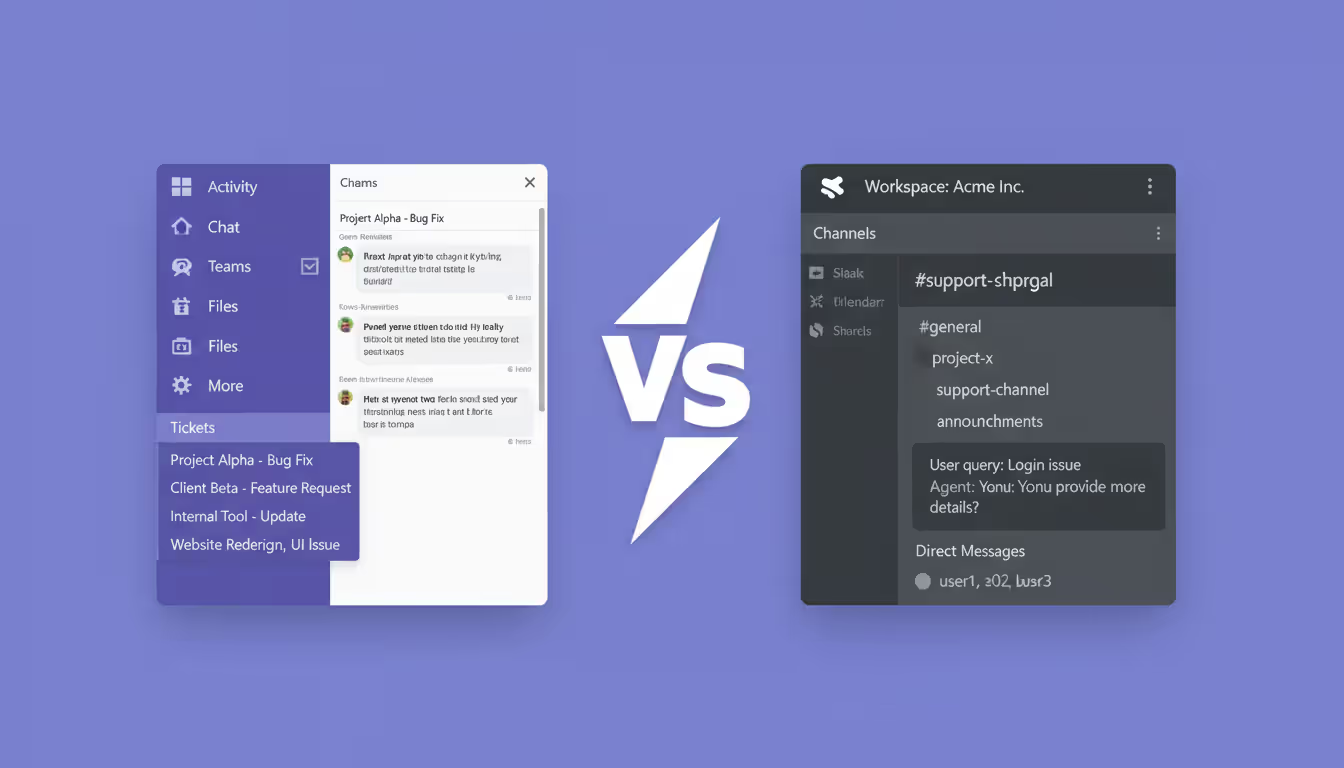
Both platforms support third-party ticketing integrations, but architectural differences affect the user experience. Teams integrates more tightly with Microsoft 365 services, automatically pulling user data from Azure AD, linking to SharePoint documents, and connecting with Power Platform tools. Organizations already invested in Microsoft licensing find this ecosystem integration valuable for teams support ticketing scenarios.
The slack ticketing system landscape includes mature solutions like Halp, Zendesk for Slack, and Jira Service Management. Slack's simpler API and bot framework historically made it easier for developers to build ticketing tools, resulting in more options with polished conversational interfaces. Teams has closed this gap considerably, but some administrators still find Slack integrations feel more native.
Pricing considerations extend beyond the ticketing app itself. Teams comes bundled with Microsoft 365 subscriptions most organizations already purchase, while Slack requires separate licensing. However, Slack's per-active-user pricing can cost less than Microsoft 365 for smaller teams. Calculate total cost including platform licenses plus ticketing solution fees.
Teams handles file sharing and collaboration around tickets more naturally since documents live in SharePoint with proper version control and permissions. Slack's file sharing works but lacks the governance features enterprises require for sensitive support data.
Notification management differs significantly. Teams' activity feed consolidates notifications across all apps and channels. Slack's notification system offers more granular controls but can become overwhelming with multiple integrations. For support agents juggling many tickets, Teams' unified approach reduces context switching.
Enterprise security and compliance teams typically prefer Teams due to Microsoft's comprehensive data governance tools, advanced threat protection, and compliance certifications. Slack has improved significantly in these areas, but Microsoft's enterprise security ecosystem remains more mature.
The deciding factor often comes down to existing platform adoption. Implementing ticketing in the communication tool employees already use daily drives higher adoption than introducing a new platform alongside ticketing functionality.
Author: Ethan Marlowe;
Source: musiconmainstreet.com
Common Challenges and How to Solve Them
Adoption resistance surfaces when employees continue emailing support instead of using the new ticketing system. Combat this by disabling or auto-responding to support email addresses with instructions for the Teams-based process. Have managers model correct behavior by submitting their own requests through Teams. Celebrate early adopters in team meetings.
Notification overload frustrates agents when every ticket update generates a Teams notification. Configure the ms teams help desk to send notifications only for new assignments, @mentions, and approaching SLA deadlines. Disable notifications for ticket updates agents make themselves. Use quiet hours to suppress non-urgent notifications outside business hours.
Reporting limitations appear when leadership requests metrics the ticketing system doesn't track. Identify required reports during the planning phase and verify the solution provides them before purchasing. Many platforms export raw data to Excel or Power BI for custom analysis. Build standard reports early rather than scrambling when executives ask for data.
Permission management becomes complex in organizations with multiple support tiers, departments, and confidentiality requirements. Create Teams-based security groups mapping to agent roles (tier-1, tier-2, department-specific). Use these groups to control ticket visibility and assignment options. Review permissions quarterly as staff change roles.
Ticket sprawl occurs when users create duplicate tickets for the same issue through different channels. Implement duplicate detection by scanning for tickets from the same user with similar keywords submitted within short timeframes. Train agents to merge duplicates and educate repeat offenders about proper ticket usage.
We cut our average resolution time by 40% after implementing ticketing in Teams. The biggest surprise wasn't the tracking features—it was simply getting support requests out of email where they'd get buried. Now nothing falls through the cracks, and our team can actually prioritize work instead of whoever yelled loudest
— Emily Carter
Integration gaps emerge when the teams it support system doesn't connect with existing tools like asset management databases or monitoring systems. Evaluate integration capabilities before purchase. Use Microsoft Power Automate as a bridge to connect the ticketing system with other applications through automated workflows.
FAQ
How much does a Microsoft Teams ticketing system cost?
Pricing ranges from free for basic Power Apps custom solutions to $20-50 per agent per month for commercial solutions. Most vendors offer tiered pricing based on agent count, with discounts for annual commitments. Factor in implementation time—custom solutions require 20-40 hours of development, while commercial apps deploy in 2-4 hours. Total first-year cost for a 10-agent team typically runs $3,000-7,000 including setup and subscriptions.
Can I build a ticketing system in Teams without third-party apps?
Yes, using Power Apps for forms, Power Automate for workflows, and SharePoint lists for ticket storage. This approach works for teams handling fewer than 50 tickets monthly with simple workflows. You'll need someone with Power Platform skills to build and maintain the solution. Expect limited reporting, no SLA management, and manual workarounds for features commercial solutions provide out-of-box. Budget 30-50 hours for initial development plus 3-5 hours monthly maintenance.
Do Teams ticketing solutions work on mobile devices?
Most commercial solutions offer mobile access through Teams mobile apps on iOS and Android. Users can submit tickets, check status, and receive notifications on phones. Agent functionality varies—some solutions provide full mobile ticket management while others limit mobile users to viewing and basic updates. Test mobile workflows during trials since support staff increasingly work remotely. Native Teams mobile app integration generally works better than web-based mobile interfaces.
How secure is ticketing data in Microsoft Teams?
Ticketing data security depends on where the solution stores information. Apps using Microsoft Dataverse or SharePoint inherit Microsoft 365's security features including encryption at rest and in transit, Azure AD authentication, and compliance certifications (HIPAA, SOC 2, ISO 27001). Third-party databases hosted by vendors require reviewing their security documentation. Check whether the solution supports data residency requirements for regulated industries. Enable multi-factor authentication for all agents handling sensitive tickets.
What's the typical setup time for a Teams helpdesk solution?
Commercial solutions deploy in 2-4 hours for basic configurations. Add another 4-8 hours for customizing forms, setting routing rules, configuring integrations, and testing workflows. User training and rollout communications require 5-10 hours. Plan 2-3 weeks from purchase to full deployment including testing periods. Custom Power Apps solutions need 30-50 hours initial development. Enterprise implementations with complex workflows, multiple departments, and extensive integrations can take 4-8 weeks.
Can Teams ticketing integrate with our existing ITSM tools?
Many microsoft 365 ticketing solutions integrate with popular ITSM platforms like ServiceNow, BMC Remedy, and Cherwell. Integration depth varies from basic ticket creation (Teams creates tickets in the ITSM tool) to bi-directional sync (updates in either system reflect in both). Common integration scenarios include using Teams as a front-end for employee requests while maintaining the ITSM platform for asset management and change control. Evaluate integration options during vendor selection if you're not replacing existing ITSM infrastructure.
Implementing a ticketing system transforms Microsoft Teams from a communication platform into a complete support environment. Employees submit requests where they already work, support teams track every issue systematically, and nothing disappears into email black holes.
The right solution depends on your organization's size, support complexity, and technical resources. Small teams with simple needs might build basic ticketing using Power Apps. Most organizations benefit from commercial solutions offering professional features, ongoing support, and faster deployment.
Success requires more than installing software. Define clear processes, configure routing rules matching your workflows, train both agents and users, and refine the system based on real usage patterns. The teams that see dramatic improvements treat ticketing implementation as a process change initiative, not just a technology deployment.
Start with a limited rollout to one department or support category. Gather feedback, adjust configurations, and expand gradually. This approach builds confidence, identifies issues early, and creates internal champions who help drive broader adoption.
Running a small business means wearing multiple hats. When support requests pile up in email inboxes, Slack threads, and sticky notes, tracking who's handling what becomes impossible. A ticketing system transforms chaos into clarity by centralizing every request, assigning ownership, and creating workflows your team can follow
Choosing the wrong ticketing system costs thousands in lost productivity and expensive migrations. This comprehensive comparison evaluates leading platforms across features, pricing, and real-world use cases to help you select the right solution for IT support or customer service needs
A ticketing system converts requests into structured records called tickets, preventing customer questions and IT issues from falling through the cracks. Learn how ticketing platforms work, what features matter, and how to choose the right solution for your business needs
Managing support requests without breaking the budget is possible with open source ticketing systems. This guide compares popular platforms like osTicket, Zammad, and OTRS, covering essential features, implementation considerations, and hidden costs to help you choose the right solution
The content on this website is provided for general informational and educational purposes only. It is intended to explain concepts related to event management software, ticketing systems, hybrid event platforms, and operational tools for event organisers.
All information on this website, including articles, guides, and examples, is presented for general educational purposes. Outcomes may vary depending on event size, technology choices, and organisational needs.
This website does not provide professional legal, financial, or software advice, and the information presented should not be used as a substitute for consultation with qualified event tech or IT professionals.
The website and its authors are not responsible for any errors or omissions, or for any outcomes resulting from decisions made based on the information provided on this website.